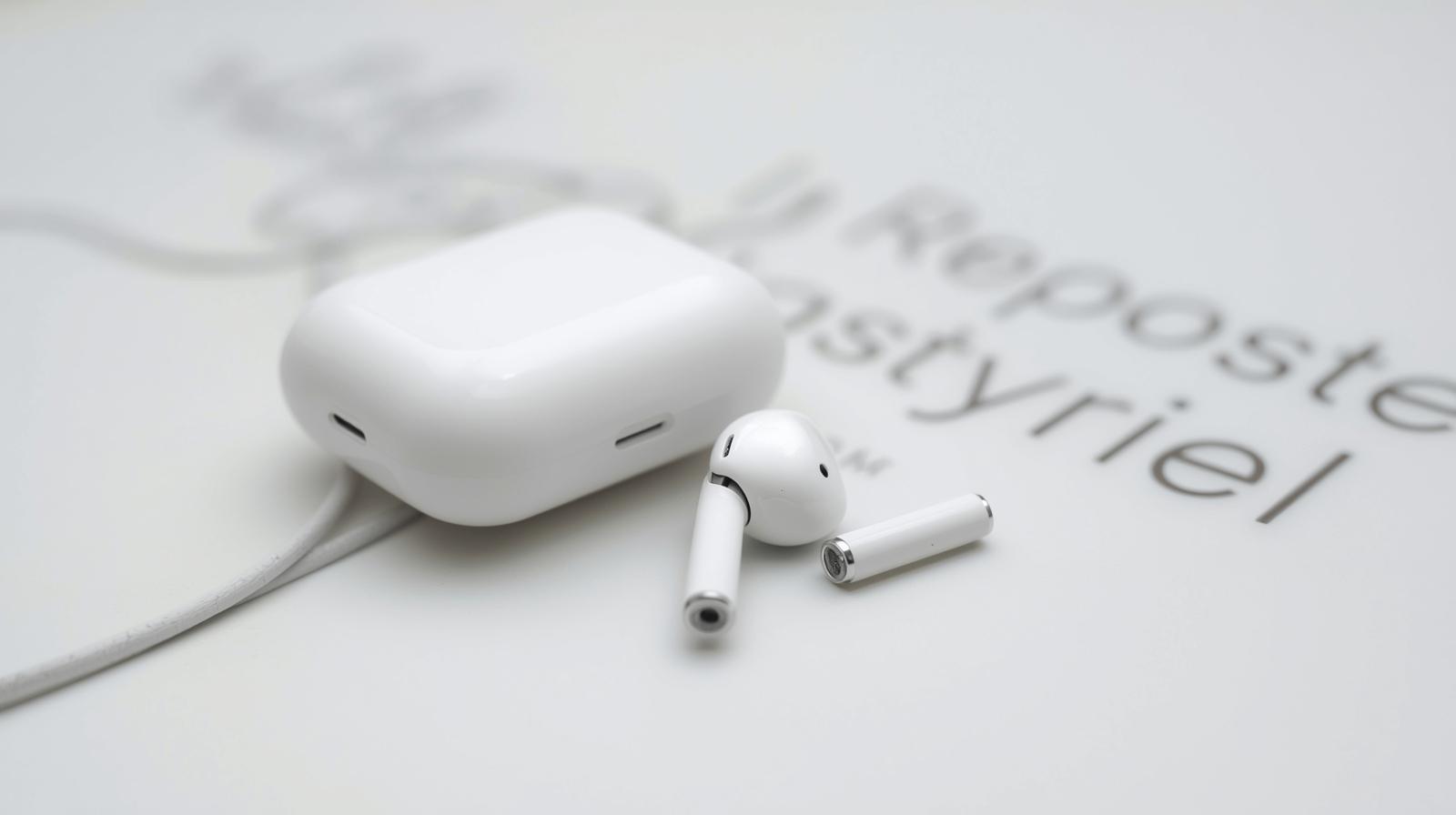
Resetting your AirPods can solve a wide range of connectivity, battery, and sound issues, whether you own AirPods Pro, AirPods Max, or the standard models. This article provides a detailed, step-by-step guide on How to Reset AirPods, covering every generation and model, including AirPods 2, 3, 4, and all Pro and Max variants. You will learn why resetting might be necessary, how to restore your AirPods to factory settings, and how to manage devices from previous owners. Additionally, this guide explores special scenarios, such as preventing AirPods from being tracked, and answers common questions to ensure your AirPods function smoothly and reliably.
Why You Might Need to Reset Your AirPods
AirPods, like any electronic device, may occasionally face technical issues. Understanding why a reset may be necessary helps you address problems efficiently. Common reasons include:
- AirPods connectivity issues – sudden disconnections from iPhone, iPad, or Mac.
- AirPods battery problems – uneven battery drain or charging case not functioning correctly.
- AirPods sound problems – static, low volume, or audio lag.
- Pairing issues with multiple devices – sometimes AirPods fail to recognize previously paired devices.
Performing a reset restores AirPods to their original factory settings, which often resolves these issues without requiring professional support. It also allows you to disassociate AirPods from your Apple account or prepare used AirPods for a new owner.
How to Reset AirPods (All Models)
Resetting AirPods is straightforward once you locate the setup button on the charging case. Here is a general process applicable to most AirPods models:
- Place both AirPods inside the charging case and close the lid for at least 30 seconds.
- Open the lid and press and hold the setup button on the back of the case.
- Watch the status light flashing amber and then white, signaling a successful reset.
- Release the setup button and reconnect AirPods to your device by following the on-screen prompts.
This universal method works as a base for specific models, but certain AirPods like Pro or Max have unique steps you need to follow for complete reset.
How to Reset AirPods Pro
AirPods Pro includes features like Active Noise Cancellation and Transparency Mode, so resetting may involve additional steps:
- Place AirPods Pro in their charging case.
- Close the lid, wait 30 seconds, and then reopen.
- Press and hold the setup button until the status light flashes amber then white.
- Release the button.
- If AirPods were linked to a previous owner’s account, navigate to iCloud settings to remove AirPods from Apple ID.
Resetting AirPods Pro resolves pairing issues, audio glitches, or malfunctioning noise control buttons, ensuring your earbuds function as intended.
How to Reset AirPods Max
AirPods Max are over-ear headphones with advanced controls, including the Digital Crown and noise control button. Here’s how to reset them:
- Ensure AirPods Max are powered on.
- Press and hold the noise control button and Digital Crown simultaneously.
- Keep holding until the LED flashes amber then white, indicating the device is reset.
- Release the buttons and reconnect via Bluetooth.
Resetting AirPods Max addresses connectivity problems, software glitches, and restores settings for Active Noise Cancellation and spatial audio features.
How to Reset AirPods (1st, 2nd, 3rd, and 4th Generation)
Different generations of standard AirPods have minor variations in reset steps:
- AirPods 1st Generation: Place in case → Press setup button → Status light flashes amber → reconnect.
- AirPods 2nd Generation: Similar steps, with added focus on charging case reset if experiencing battery problems.
- AirPods 3rd Generation: Ensure firmware is updated; press and hold setup button until white flash.
- AirPods 4th Generation: Include minor adjustments in iCloud unlinking if transferring ownership.
These steps resolve issues such as AirPods pairing issues, inconsistent audio, and AirPods connectivity problems across multiple devices.
How to Reset AirPods 2 and AirPods 3
For AirPods 2 and 3 specifically, a charging case reset often fixes common problems:
- Place AirPods inside the charging case and close the lid for 30 seconds.
- Open the lid, press the setup button, and watch the amber then white flash.
- Disconnect AirPods from all devices to prevent automatic reconnection.
This is particularly useful when AirPods experience audio lag, inconsistent battery performance, or difficulty pairing with newer devices.
Special Scenarios: Resetting AirPods from Previous Owners
Used or inherited AirPods may still be associated with a previous owner’s Apple ID. Attempting to reset without unlinking from Apple account may prevent setup:
- Navigate to iCloud settings on the previous owner’s device.
- Select AirPods and choose Remove from Account.
- Then perform a standard reset using the setup button method.
This ensures the device is wiped clean and ready for new ownership without Find My AirPods tracking issues.
How to Reset AirPods Case
Sometimes the issue lies in the AirPods charging case rather than the earbuds themselves:
- Place AirPods inside the case.
- Close the lid and wait at least 30 seconds.
- Press and hold the setup button until the status light flashes amber then white.
Resetting the case resolves problems such as AirPods not charging, status light malfunction, or inconsistent connectivity.
How to Reset AirPods to Factory Settings
Restoring AirPods to factory settings is the ultimate troubleshooting step:
- Wipe AirPods clean of any device associations.
- Perform model-specific reset steps for Pro, Max, or standard AirPods.
- Ensure iCloud settings reflect removal from all previous devices.
- Reconnect AirPods to your devices as new.
This process addresses all AirPods troubleshooting issues, including sound, pairing, and battery problems, ensuring a fresh start.
How to Prevent AirPods from Being Tracked
After resetting AirPods, consider additional steps to prevent unwanted tracking:
- Disable Find My AirPods in iCloud settings.
- Remove AirPods from previous owner’s Apple ID.
- Avoid pairing with unknown devices without user consent.
These steps help maintain privacy and ensure used AirPods reset won’t inadvertently alert other users to your location.
FAQs: Common Questions About Resetting AirPods
1. How do I reset my AirPods to factory settings?
Place in case → Press setup button → Status light flashes amber and white → Reconnect.
2. Why won’t my AirPods reset?
Likely still linked to a previous Apple ID or a firmware issue. Ensure disassociate AirPods and update firmware if necessary.
3. Can I reset AirPods without the case?
No. The charging case is required to initiate the reset.
4. How do I reset AirPods Pro 2?
Place in case → Press and hold setup button → Status light flashes amber and white → Remove from Apple ID if needed.
5. What happens when I reset my AirPods?
All settings are cleared, the device is wiped clean, and it can be paired as new.
Conclusion
Resetting AirPods, whether Pro, Max, or standard models, is a critical troubleshooting step that resolves most connectivity, sound, and battery issues. By following this step-by-step guide, you can restore your AirPods to factory settings, manage devices from previous owners, and ensure privacy with tracking prevention. Understanding the nuances of each model from AirPods 1st generation to AirPods Max—ensures a smooth reset process and reliable performance. With these techniques, you can maintain optimal functionality, prolong device lifespan, and enjoy a seamless audio experience across all Apple devices.

Zara Lane is an experienced writer at BlessingAndShine, specializing in creating heartfelt and inspiring blessing articles. With a passion for spreading positivity and hope, she crafts messages that bring comfort, joy, and encouragement to readers. Zara combines creativity, empathy, and real-world insight to produce content that uplifts spirits, fosters connection, and helps readers celebrate meaningful moments in life.